
Notifications
Clear all

So since I built the online Map Viewer, i’ve shifted my focus to building a piece of hardware for the PFC. It started as an idea and is now almost fully functional. So.. I introduce to you, what i’m calling, the PFC Gauge & Autotune Bridge, or the PFC Bridge. It’s meant to bridge the gap between requiring a tuner, or a computer to handle CoPilot for auto tuning, or the full knowledge to tune in general.
It’s still in a a testing and development stage, but it’s almost ready for full testing.
What is it? It is a hand held device that plugs into the Apexi PFC and is able to Autotune fuel and ignition timing, backup your current maps, perform basic logging, etc.
Primary Features
Gauges
View RPM, Speed, intake air temp, engine temp, knock, and boost.
Fuel Autotuning Modes
Live Auto Tuning – Captures AFR samples and compares them to the InjCorrection map(converted to AFR) and then makes adjustments to the BaseMap and then once enough map corrections have been captured, it writes the map to the PFC.
Safe Auto Tuning – Same as the Live Auto Tuning except it creates a MapBackup.dat file(same format as what FCEdit uses) and makes the adjustments to that. You can then pull the micro sdcard and pull the map, viewing/editing it in FCEdit before manually writing it to the PFC.
Logging – Creates a CSV file that contains a 20×20 empty map and then logs the recorded AFR’s in their respective load cells. It copies the Inj Correction map in a second workbook so that you can compare the two at a later time.
Ignition Autotuning Modes
Ignition Auto Tuning – using set low, medium, high knock thresholds it will pull timing when knock is logged. This is essentially knock control in a very fundamental and basic form.
Ignition Advance Autotuning – Will log knock values and when none is seen it will increase timing by 1 degree. If any knock is seen after this change it will immediately change the map back to the previous value.
WB02
Select one of the built-in wb02 options or provide custom 0-5v values in a text file on the removable sd-card.
How it all works(a general overview) –
Connect it to your PFC and start your vehicle. You’ll first need to navigate to the settings menu. Once here, you’ll select the option to Backup your current map. It will create an FCEdit readable .dat file.
Below that you’ll select the option to “Load AFR Map”. This will store a copy of the Inj Correction map as their respective AFR converted values. This is what we will tune the AFR’s and base map against.
You’ll then need to go to the WB02 screen and select your respective WB02. I have built in values for the Innovate MTX-L, LC02 and the aem uego, but if you have a different one, you can edit the text file off of the SDCard which provided an example.
you’ll then want to go back to the settings menu and select Save Settings(while your settings should be saved automatically, it’s never a bad idea to manually save everything.
At this point you can pull the backup.dat file from your PFC and view it in FCEdit, CoPilot, etc. Alternativley, navigate to one of the Auto Tune pages or the gauge page to view/start the tuning process.
This topic was modified 5 months ago 2 times by Patrick Lipp
https://patricklipp.com
https://mytechliving.com
https://theculturedcar.com
Topic starter
Posted : 04/05/2026 8:09 pm
The Development:
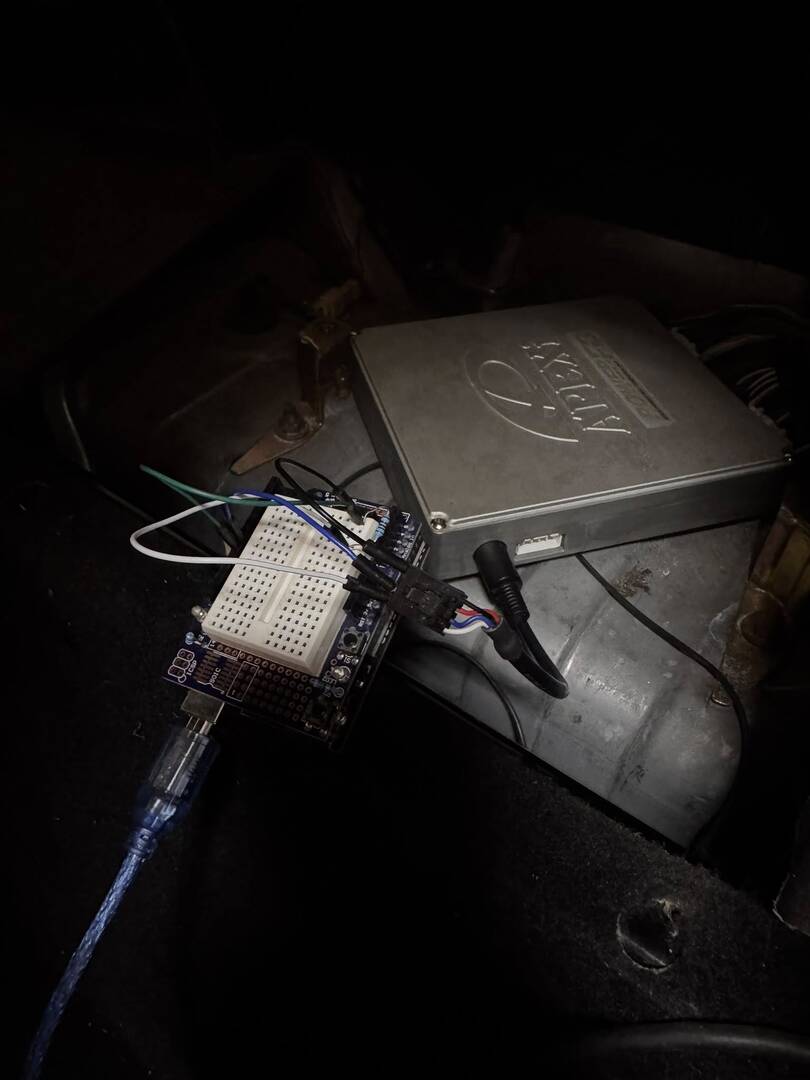
At First, I used an Arduino uno to establish a serial/uart connection into the PFC. This was the first milestone. I was going in pretty blind but was able to establish a connection and was relatively quickly able to view the realtime data, though didn’t yet have everything parsed. I was viewing the data through the serial console in Arduino.
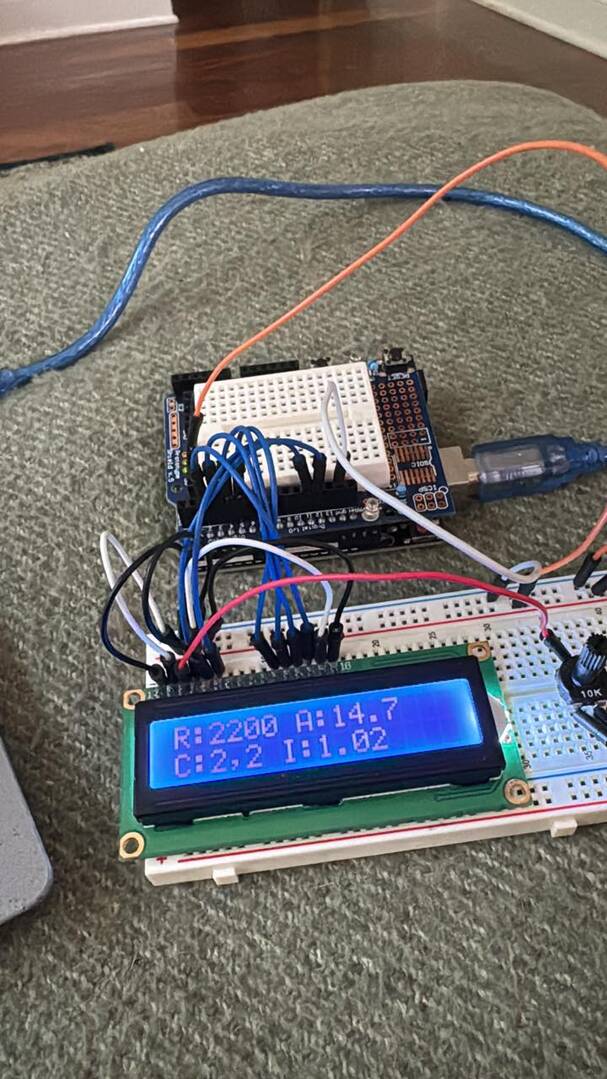
Next up, I added a screen and was able to output some of the data in real time. First was the RPM and wheel speed, and then I was able to wire in the WB02, view knock levels, etc.
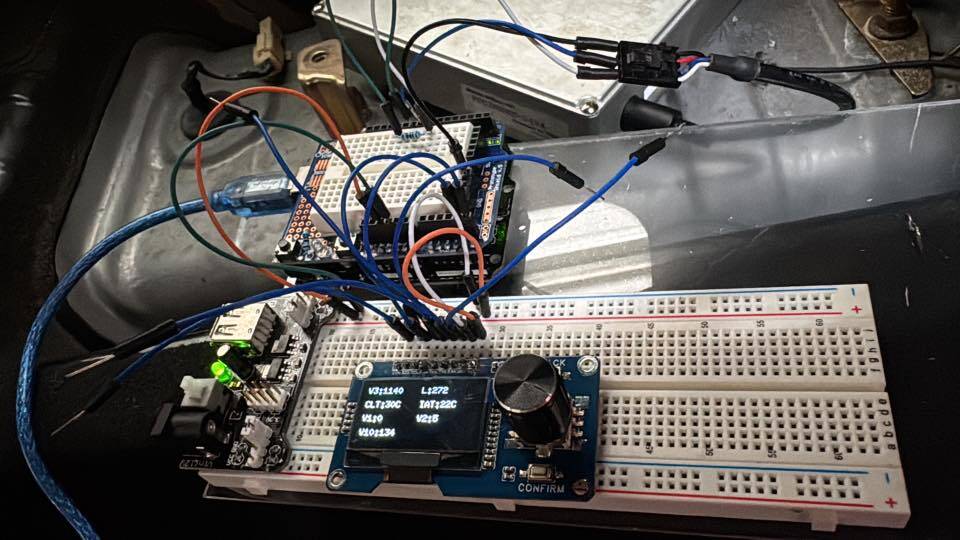
I then purchased a screen, rotary knob and button combo and got it all wired in. I was then able to view a few more items and began creating a menu system. At this point I had established that I was able to parse almost all of the “Live” data from the PFC, but the next big step was getting a board that had enough power and the features to actually make this worthwile. At this point I purchased the Teensy 4.1 board(without ethernet).
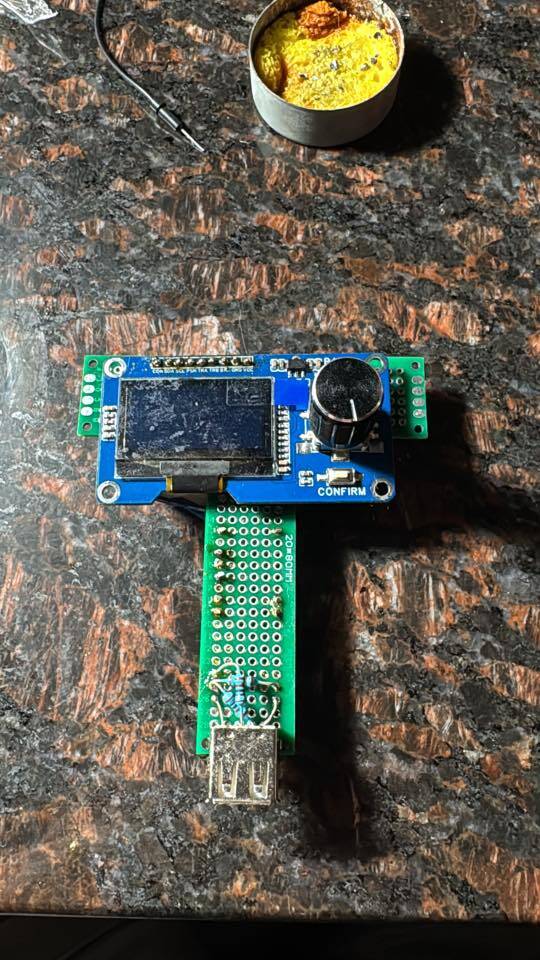
I also purchased a few other things to build out something that looked somewhat usable instead of just a bunch of hacked together boards. I also had to start designing how it would be layed out. It introduced the first few potential issues. First, the Teensy runs on 3.3v and is not tolerant to 5v like the arduino is. The PFC has four wires for it’s output, VCC which is 5v, TX, RX and Ground. The RX line is also 5V, so I had to add a voltage stepdown using a few resisters. I also added a 1k resistor on the TX line to help alleviate some potential noise; more of a safety than anything.
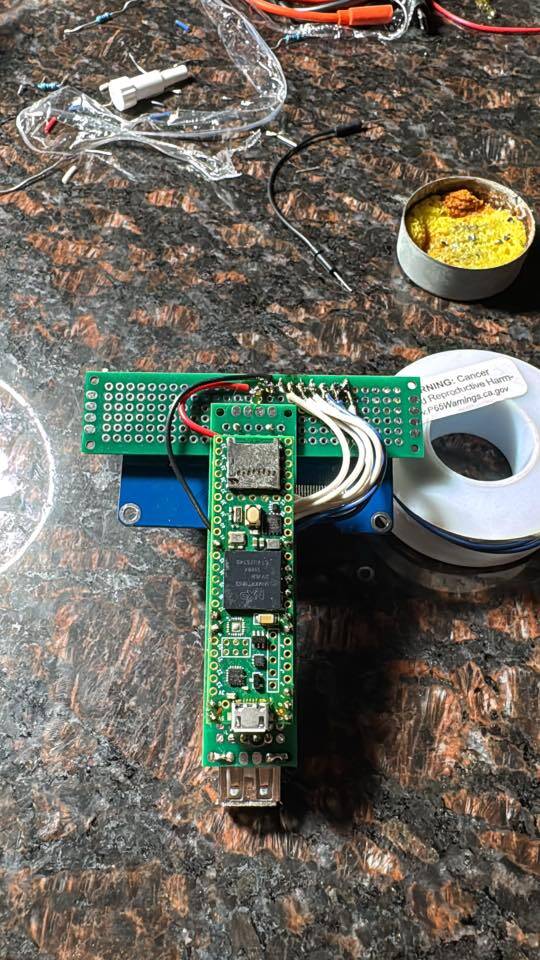
Slowly got everything connected and the screen wired up and had the controller functional(though not fully programmed yet).
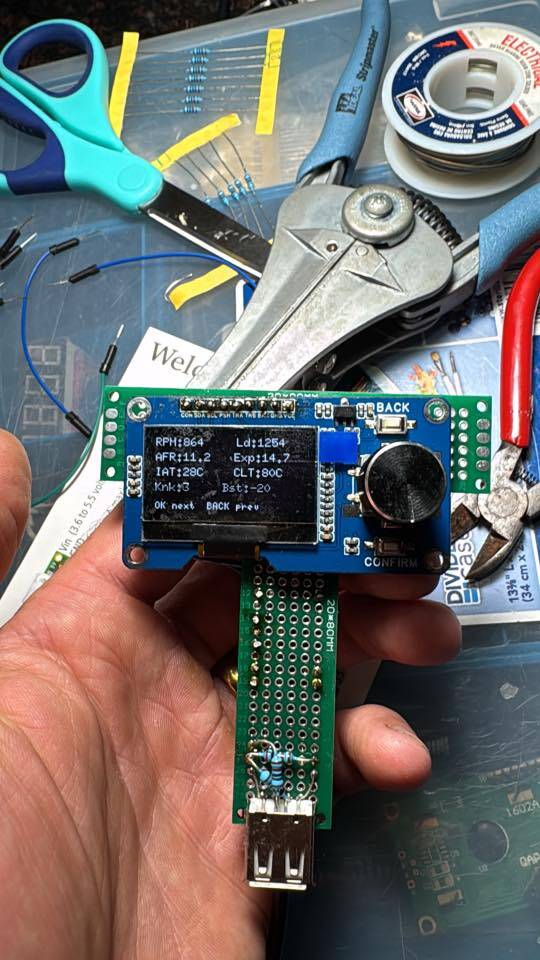
Screen on and working. Powered by computer USB still.
https://patricklipp.com
https://mytechliving.com
https://theculturedcar.com
Topic starter
Posted : 04/05/2026 8:19 pm
At this point, the big programming has started. I also got very tired of having to run back and forth to/from my car, so I pulled the PFC and powered it externally to run on my test bench(technically just from my couch, but i digress). Progress is being made.
https://patricklipp.com
https://mytechliving.com
https://theculturedcar.com
Topic starter
Posted : 04/05/2026 8:23 pm
# PowerFC Gauges & AutoTune Bridge Overview
## Purpose
PowerFC Bridge is a companion display and tuning assistant for the Apexi PowerFC. It is designed to show live engine data, help confirm the car is ready for tuning, back up map data, and support fuel and ignition tuning workflows.
The current focus is Toyota PowerFC support, with the project structured so other PowerFC platforms can be added later.
## What It Does
– Displays live PowerFC data such as RPM, speed, AFR, knock, coolant temperature, intake temperature, and boost when enabled.
– Reads and backs up PowerFC map data to the SD card in an FCEdit-compatible format.
– Loads the injector correction map as the expected AFR target map.
– Supports wideband oxygen sensor input through the Teensy analog input.
– Provides readiness checks before allowing fuel or ignition tuning.
– Supports fuel logging, safe fuel autotune, and live fuel autotune modes.
– Provides ignition autotune controls and ignition advance controls for future tuning logic.
– Saves settings to the SD card so configuration can persist between sessions.
## Controls
The interface uses three physical buttons plus the rotary encoder.
– Confirm button: moves forward through pages.
– Back button: moves backward through pages, or cancels confirmation prompts.
– Rotary knob: scrolls through selectable items on the current page.
– Rotary button: toggles or activates the selected item.
## Startup
On startup the screen shows:
“`
PowerFC Gauges & AutoTune
Waiting for connection…
“`
Once valid PowerFC data is received, the display moves into the normal page flow.
https://patricklipp.com
https://mytechliving.com
https://theculturedcar.com
Topic starter
Posted : 04/05/2026 8:25 pm
## Main Pages
### 1. Gauges
The Gauges page is the primary driving display.
It shows:
– Large RPM display.
– Speed.
– Current AFR.
– Expected AFR, only when O2 feedback is disabled and a valid AFR map is loaded.
– Knock value.
– Autotune status.
– Boost, when enabled in settings.
– Engine coolant temperature.
– Intake air temperature.
This page is intended for quick viewing while driving or testing.
### 2. Readiness Checks
The Readiness Checks page shows whether the system is ready for tuning or logging.
Current checks include:
– Water temperature: must be at operating temperature(Greater than 160f)
– Map backup: confirms the relevant maps have been backed up.
– O2 feedback: must be disabled for tuning.
– AFR map: must be loaded from valid injector correction map data.
Fuel and ignition tuning are locked out when required checks are not met.
### 3. Fuel AutoTune
The Fuel AutoTune page controls fuel-related tuning and logging.
Options:
– Start Live Auto Tune / Stop Live Auto Tune.
– Start Safe Auto Tune / Stop Safe Auto Tuning.
– Start Logging / Stop Logging.
Starting either fuel autotune mode disables O2 feedback. This is intentional because the PowerFC O2 feedback system would otherwise interfere with wideband-based tuning corrections.
Live Auto Tune is intended to update the running PowerFC maps directly once enough valid samples are collected. This should only be used once write behavior is fully validated.
Safe Auto Tune updates a working tune file on the SD card instead of directly changing the running ECU map. This allows the generated map to be reviewed in FCEdit or similar tools before being written manually.
Logging records AFR samples by load cell for later review.
### 4. Ignition AutoTune
The Ignition AutoTune page is dedicated to ignition tuning controls.
It displays:
– Current ignition angle.
– Knock value.
– Ignition autotune status.
– Ignition advance enable status.
Ignition tuning requires the required checks to be met before it can be enabled.
### 5. Sensor Data
The Sensor Data page is a more detailed live-data view.
It is intended for checking raw or supporting values such as:
– Speed.
– RPM.
– AFR.
– Coolant temperature.
– Intake temperature.
– Knock.
– Battery voltage.
– O2 feedback state.
This page is useful during setup, troubleshooting, and sensor validation.
### 6. Settings
The Settings page is used for configuration and storage actions.
Common settings and actions include:
– Enable or disable O2 feedback.
– Back up maps.
– Save or load settings.
– Load the AFR map.
– Format the memory card.
– Enable or disable boost display.
The Settings title area displays short status messages while actions are running, such as backing up maps, backup complete, loading settings, or loading the AFR map.
### 7. WB02 Type
The WB02 page selects the wideband oxygen sensor calibration.
Current options:
– Innovate.
– AEM.
– Custom file.
Innovate is the default. For custom wideband support, the SD card includes a placeholder calibration file that can be edited with the sensor’s 0-5V AFR range.
The custom wideband example file is:
“`text
/PFC/custom_wb02.txt
“`
Example contents:
“`text
# Custom wideband 0-5V linear calibration
# Edit these AFR endpoints to match your controller.
# Example: 0V=8.0 and 5V=22.0
0V=8.0
5V=22.0
“`
## Readiness Checks
The tuning and logging checks are intended to prevent collecting bad data or making corrections under unsafe conditions.
Required conditions include:
– Coolant temperature above operating threshold.
– Wideband O2 actively reading.
– O2 feedback disabled.
– Required maps backed up.
– Valid injector correction map loaded as the AFR target map.
Autotune and logging can be enabled at 0% throttle and below the minimum road-speed threshold. Samples are only collected once speed and throttle are both above the sampling thresholds, currently 16 km/h and 3% throttle, so idle or stationary data does not affect the tune.
Fuel tuning also requires:
– Base fuel map loaded.
– Injector correction map loaded and converted into valid AFR targets.
Ignition tuning also requires:
– Ignition map backed up.
## AFR Target Map
The expected AFR map comes from the injector correction maps:
“`text
inj_86
inj_87
inj_88
inj_89
“`
These maps are converted into target AFR values. If the injector correction maps are missing, incomplete, or invalid, fuel autotune is disabled.
There is no default 14.7 AFR fallback. This avoids tuning against an assumed target that may not match the actual PowerFC map.
## Fuel Autotune Modes
### Live Auto Tune
Live Auto Tune collects AFR samples and is intended to write fuel map updates back to the PowerFC once enough samples are collected.
This mode should be treated carefully because it changes the running ECU map.
### Safe Auto Tune
Safe Auto Tune collects AFR samples and updates a working map file on the SD card.
This mode is intended for review-first tuning. The updated map can be opened in FCEdit or another tool before being written to the PowerFC.
### Logging
Fuel logging records AFR samples into a 20×20 map-shaped log. Each cell stores averaged AFR data for the load and RPM area where samples were collected.
Ignition or knock logging records the highest knock values seen in each load and RPM cell.
## SD Card Use
The SD card stores:
– Settings.
– Map backups.
– Versioned backups.
– Working map files.
– AFR logs.
– Knock logs.
– Wideband custom calibration files.
Map backups are saved in a format intended to remain compatible with FCEdit.
Starting fuel logging creates or refreshes the AFR log file immediately, even before enough throttle is applied to collect samples.
Avoid removing the SD card while a backup, save, load, format, or logging operation is active.
## Safety Notes
This device is intended as a tuning aid, not a replacement for careful calibration.
– Confirm wiring before powering the PowerFC or Teensy.
– Confirm wideband calibration before using AFR data.
– Back up maps before enabling tuning.
– Use Safe Auto Tune when validating new behavior.
– Review generated maps before writing them to the ECU.
– Do not tune while the engine is cold or the wideband is warming up.
– Treat knock data conservatively.
## Current Development Status
The project can display live data, read maps, back up compatible map files, load AFR targets from injector correction maps, and provide the UI structure for fuel and ignition tuning.
Fuel and ignition tuning logic is still being developed and should be validated carefully before direct live writing is used.
https://patricklipp.com
https://mytechliving.com
https://theculturedcar.com
Topic starter
Posted : 04/05/2026 8:26 pm

@pattielipp thanks for what you’re doing!
Hope you’ll have the greatest success on this project!
Interested to buy when is fine.
You find my pvt messages in messanger.
Raffaele 🖐️
Posted : 04/05/2026 9:43 pm
1